
How to Create a Part
A new part can be created and added to a packet, part or the main
vault (if the command was implemented from the home window). Another
part can be used as a templates to create new parts and new parts may
be controlled by business rules that will determine the release
characteristics.
Follow these steps to create a new part:
- Select the Edit/Create/Part command
from the packet, part, or home window. If this option is selected
from a packet window, the new part will be added to the currently
selected packet. Similarly created parts will be added to the BOM of an existing part if
the option is selected from the part window.
- The Find Part in Class
dialog box will be displayed in order to select a part class. Select
the part class desired and press return.
- Next, the Identifier
Dialog is displayed with a default ID number for selection.
- A confirmation screen will be displayed with the assigned part
number, revisions state, description, and custom fields that may be
different for different classes.
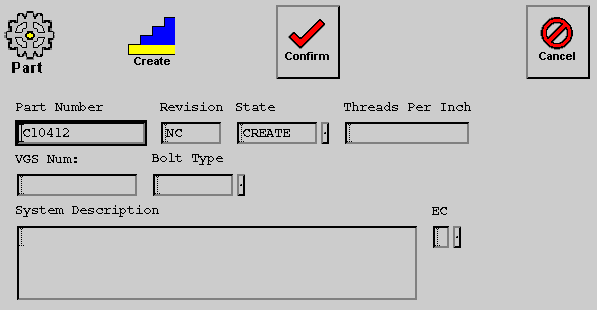 |
 - The part will be opened in the create state.
 |
To Change a field - move the cursor into a field  , click the
left mouse button, and edit the entry with the keyboard. , click the
left mouse button, and edit the entry with the keyboard. |
Select the  icon when your revision is complete. icon when your revision is complete. |
Select the  pick list icon next to a field for appropriate
options. pick list icon next to a field for appropriate
options. |
- Next, the part window will be displayed with the created
part. Documents and/or parts can be added to the created part and
information can be changed by selecting the modify icon or the
Edit/Change option. A master geometry document should be specified for
the created part.
- When this window is closed the part with the items specified
will be added to the database and will be associated with the packet
or part in which the part was created. Or it will be added to the
vault if the Edit/Create/Part command was implemented from the home
window.
Questions about ECC ??? Send e-mail to
support@integware.com